GitHub Copilot CLI: An Honest Deep-Dive Review of Pros, Cons, and Terminal AI
I'll admit it: I've spent more time than I care to confess Googling 'how to find and kill a process on port 3000' or 'git rebase interactive squash last 3 commits.' For years, I treated my terminal like a frenemy—powerful but unforgiving, and always ready to remind me that I never memorized the right flags. So when GitHub Copilot CLI entered the scene promising natural-language command generation right inside my shell, I was both skeptical and intrigued. After spending real time with it—running it through everyday workflows, pushing its agentic features, and genuinely trying to break things—I've formed a clear picture of where it delivers and where it stumbles. In this review, I'll walk you through its architecture, its standout features, and its honest limitations so you can decide if it deserves a permanent spot in your terminal toolkit.
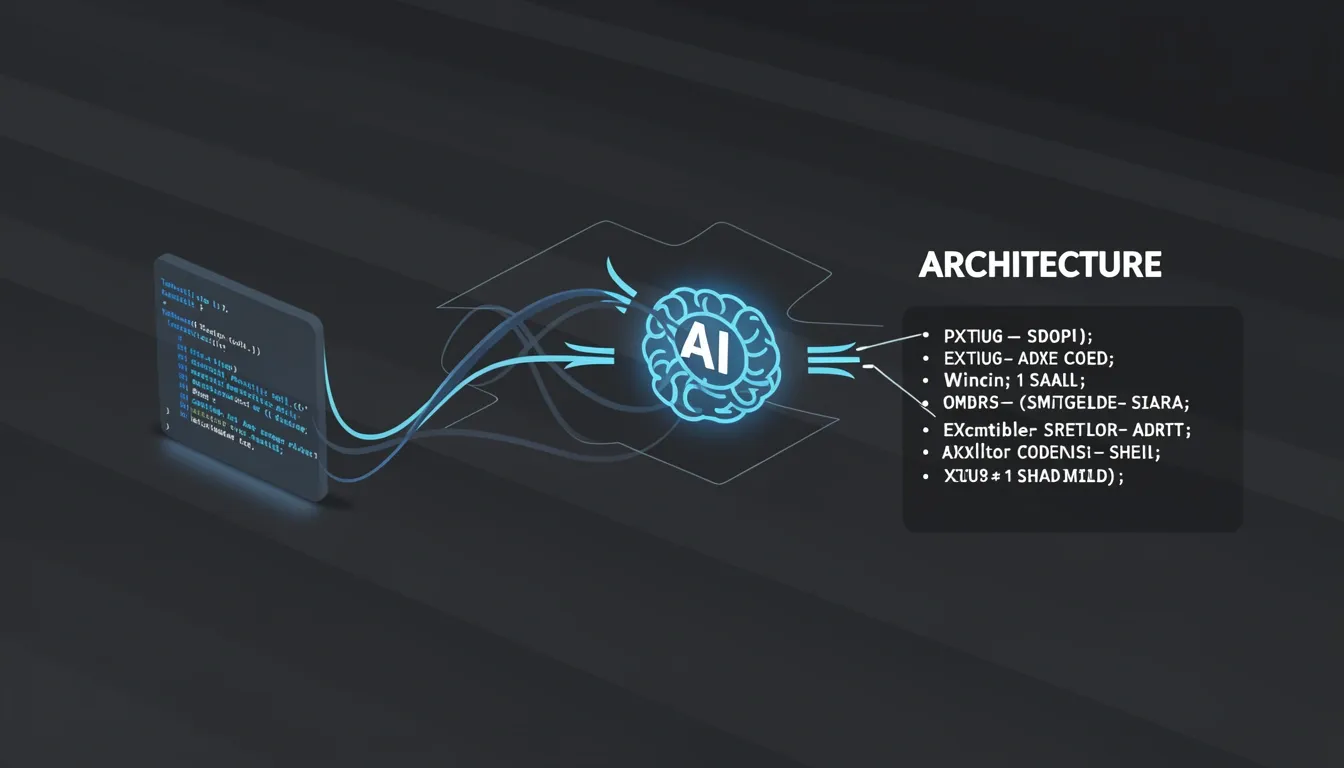
What Is GitHub Copilot CLI? Architecture & Operational Modes
GitHub Copilot CLI functions as an AI-native terminal agent that replaces rigid command memorization with natural language intent. Instead of recalling obscure tar flags or ffmpeg syntax, I can describe what I want to accomplish in plain English and let the model translate that intent into executable shell commands. However, this convenience sits behind a paywall: it requires an active GitHub Copilot subscription, which immediately positions it as a premium productivity layer rather than an open-source utility. The underlying premise is simple—bridge the gap between human intent and shell syntax—but the implementation introduces genuine architectural choices around session state and execution control.
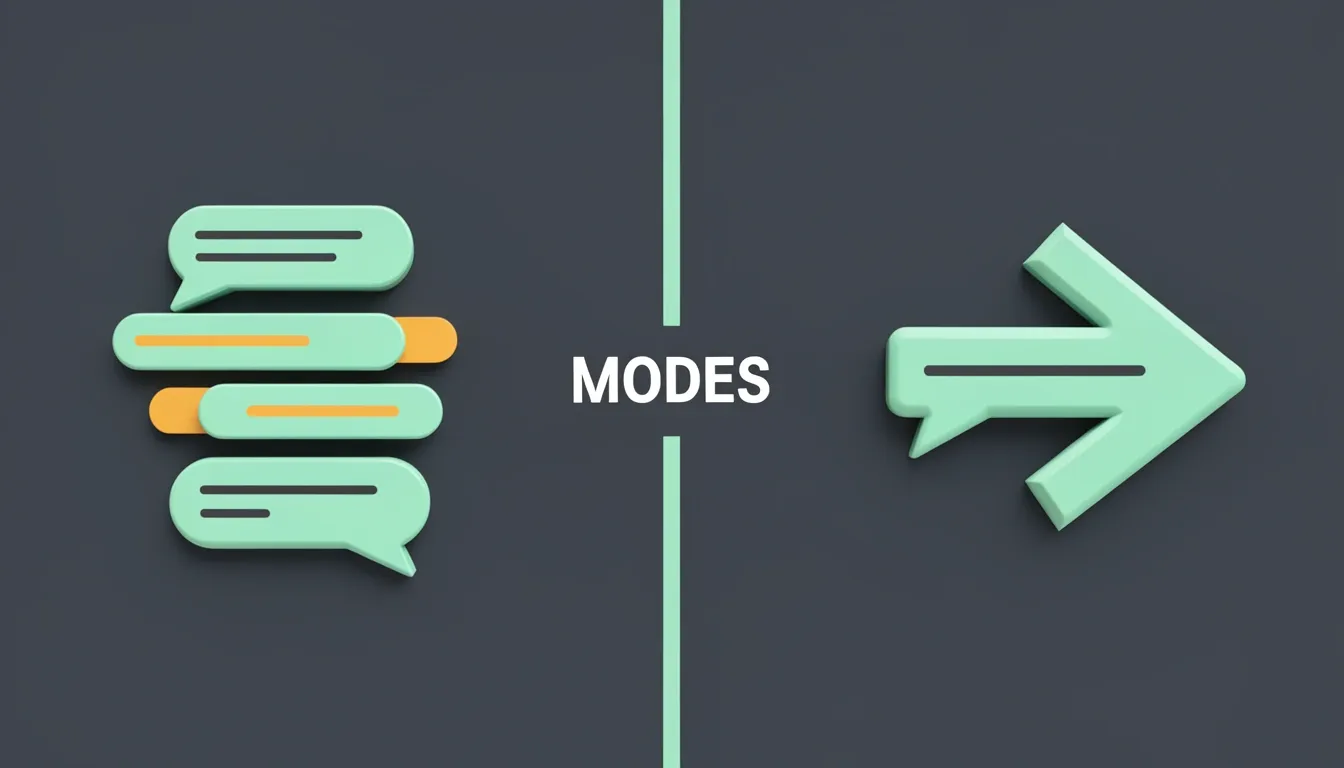
The interface splits into two distinct operational modes that serve different cognitive workflows. Interactive Mode acts as the default entry point when I run the bare copilot command. Here, the tool spins up a persistent conversational context, allowing me to refine tasks iteratively across multiple turns. I find this invaluable for multi-step workflows—like scaffolding a project, running tests, and then cleaning up artifacts—because the session retains context across commands rather than forcing me to re-explain the environment on every invocation. In contrast, Programmatic Mode is built for speed and automation. By appending -p or --prompt directly to the command, I get an inline response without the overhead of an interactive session. For instance, running copilot -p "create a bash script to check for uncommitted changes and push if clean" generates the script immediately and exits. This mode is perfect for aliases and shell scripts where I want zero conversational overhead.
Speaking of friction reduction, the --allow-all-tools flag deserves attention. When I define an alias such as alias cpcli='copilot --allow-all-tools -p "$@"', I am essentially pre-approving every tool invocation for that specific call. This bypasses the usual confirmation gates, which is useful for trusted, repetitive workflows, though I am personally cautious about deploying it in unfamiliar directories where unintended file operations could cascade quickly.
The Execution Loop and Security Boundaries
Under the hood, Copilot CLI follows a straightforward but effective loop: I provide a natural language prompt, the model translates it into shell commands, the system presents those commands for my confirmation, executes upon approval, and returns the result. What stands out to me is that the tool enforces explicit consent before any file is read, modified, or executed. There are only two exceptions to this rule. First, if I select "Yes, and remember this folder for future sessions", the CLI caches folder-level trust, avoiding repetitive prompts within that directory tree. Second, if I choose "Yes, and approve TOOL for the rest of the session", I grant temporary autonomy to a specific tool until the session terminates. This creates a balanced security model: default skepticism with optional session-scoped relaxation. I appreciate that the designers did not default to blanket trust; the confirmation gate acts as a necessary sanity check against hallucinated rm -rf equivalents or aggressive file overwrites.
Installation and System Integration
Installation is handled through npm, which feels natural for a tool targeting developers who likely already have Node.js in their environment. Running npm install -g @github/copilot@latest pulls the latest version and keeps the binary accessible system-wide. Because the CLI is distributed as an npm package, updates align with my existing JavaScript toolchain rather than requiring a separate package manager. From there, the workflow integration depends entirely on whether I prioritize the conversational flexibility of Interactive Mode or the scriptable immediacy of Programmatic Mode. Both paths, however, share the same underlying requirement: an authenticated Copilot subscription and a willingness to let an LLM sit between my intent and the raw shell.
Interactive vs. Programmatic Mode: Choosing Your Workflow
The default copilot command immediately establishes a persistent session context, which changes how I think about terminal-based AI. Unlike standard Unix utilities that execute and exit, Interactive Mode keeps the conversation alive. This means I can scaffold a project, run the test suite, watch it fail, and ask the AI to fix the errors—all within a single thread. For terminal-native developers like DevOps engineers or backend operators, this removes the friction of context-switching to an IDE chat panel. I can clone a repository, modify files, stage changes, and even open a pull request without leaving the shell. The session remembers the working state, so each subsequent prompt builds on the last rather than starting from zero.
When to Use Programmatic Mode
For single-shot tasks, Interactive Mode actually gets in the way. That is where the -p or --prompt flag comes in. When I append this flag, Copilot CLI switches to Programmatic Mode: it accepts one prompt, streams the response inline, executes if necessary, and then exits immediately. No session history is preserved. I find this pattern essential for CI/CD pipelines and shell scripts where I need a one-liner generated or a quick file operation performed without spawning a persistent agent. It is also perfect for those moments when I just need a find command with specific filters and do not want to enter a chat loop to get it.
Automation Flags and the Escape Hatch
There are two mechanics worth highlighting for anyone building automation around this tool:
--allow-all-tools: When combined with programmatic mode, this flag disables confirmation prompts for tool execution. I see this as a powerful but risky combination. If you are running Copilot CLI in a non-interactive environment like a GitHub Action, you probably need the autonomy. However, I would never enable this on a production server without strict input validation, because it effectively grants the AI agent unsupervised shell access.- The
!prefix: Within an interactive session, I can prefix any input with!to bypass the AI layer entirely and execute a raw shell command. This is a small but critical UX decision. It means I do not have to quit the session when I realize I just need to rundocker psorkubectl get podsmanually. The shell remains a first-class citizen inside the chat loop.
Why Terminal-Native Developers Should Care
From my perspective, the real value proposition here is the elimination of context switching. Sysadmins and backend developers spend their lives in the shell, and forcing them to open a GUI editor just to ask an AI for a regex pattern or a deployment script never made sense. With Interactive Mode, Copilot CLI acts as a pair-programming partner that lives in the same environment where the work actually happens. Programmatic Mode, meanwhile, lets me treat AI assistance as a composable Unix tool—something I can pipe into, redirect from, and embed in automation. The split between these two modes is not just a convenience feature; it is an architectural acknowledgment that terminal work spans both long-form exploration and atomic, scriptable actions. I think GitHub got this distinction right.
Review, Diff, and Undo: Safety Nets for Agent-Driven Edits
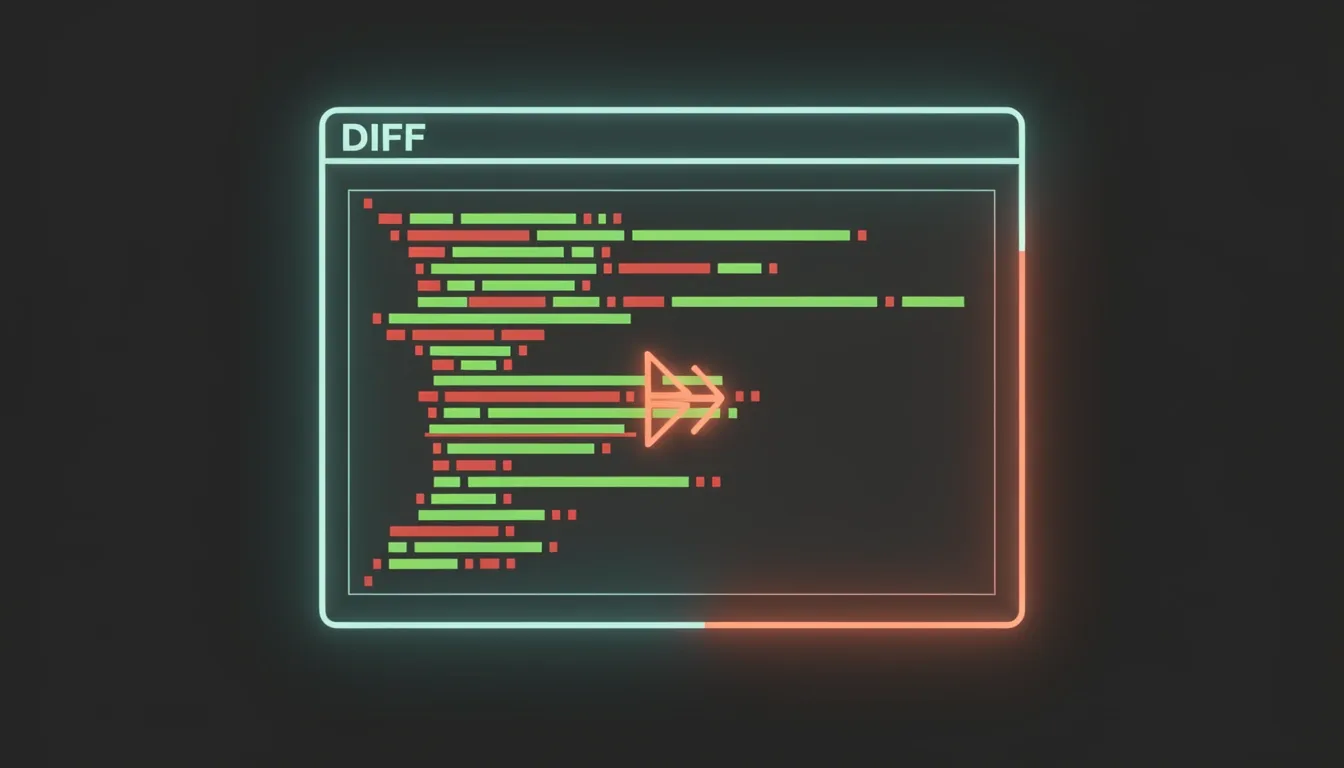
When an AI agent is editing files directly in my working tree, I need guardrails that keep me in control without forcing me into a GUI or a browser tab. Copilot CLI addresses this with three integrated safety nets: session-wide diffing, pre-commit review, and snapshot-based rewinding. Each mechanism targets a specific risk in agent-driven workflows—opaque changes, premature commits, and irreversible edits—and they all operate natively inside the terminal.
Syntax-Highlighted Review with /diff
The /diff command is more than a passive changelog. It presents syntax-highlighted, inline diffs that cover every change made during the current session. I can interact with these diffs directly:
- Line-specific comments: I can drop comments on individual lines within the diff.
- Structured feedback: Those comments can be submitted as structured feedback rather than loose text.
- Context toggling: I can switch the view between session changes and branch diffs.
This toggle behavior is architecturally interesting. To me, it implies the CLI maintains two separate diff contexts simultaneously: working-session diffs tracking agent-driven edits since the session started, and branch-relative diffs comparing the current state against the underlying Git branch. That dual-context model means the tool isn't just wrapping git diff; it is computing and caching its own session-layer deltas. When I add a comment to a specific line, that feedback is captured as structured data, which suggests the diff output is treated as a dedicated review surface rather than a simple text stream.
Terminal-Based Pre-Commit Validation with /review
Before I even think about running git commit, the /review command gives me a quick sanity check inside the terminal. Its mechanics are straightforward but tightly scoped:
- Dual-state analysis: It inspects both staged (index state) and unstaged (working tree state) changes.
- Integrated output: It returns an agent-generated analysis without spawning an external diff viewer.
- Pre-commit gating: It acts as a lightweight validation step right before I commit.
I find this particularly useful because it compresses the review loop into a single terminal pane. Instead of tabbing out to a browser or a GUI diff tool, I get an immediate assessment of what changed and why. Operating on both staged and unstaged files means I can validate a partial commit or catch unstaged agent edits I might have missed. The fact that it returns an analysis rather than just a raw diff tells me the agent is actively interpreting the semantic impact of the changes, not just listing them.
Snapshot-Based Rewind with Esc-Esc
If something goes wrong, pressing Esc twice rewinds file changes to any previous snapshot in the session. This implies Copilot CLI maintains a sequence of session snapshots that capture intermediate file-edit states as the agent works. The mechanics reveal a clear undo architecture:
- Session-level snapshots: Intermediate file-edit states are preserved throughout the session.
- Keyboard-driven reversal: The
Esc-Escshortcut lets me jump backward through these states. - Non-destructive restores: I can roll back to earlier versions without relying on Git resets or manual backups.
From an architectural standpoint, this is effectively a session-level undo tree. I see this as a vital isolation layer: the agent can experiment freely, but I can always roll back to a known good intermediate state. It creates a buffer between the agent's autonomy and my codebase's integrity that lives entirely outside of Git's own history.
Taken together, these three features form a coherent safety layer. /diff provides reviewability with structured feedback on two diff contexts, /review offers pre-commit validation without leaving the terminal, and Esc-Esc delivers non-destructive reversal through snapshot-based rewinding. When I look at the design as a whole, it is clear the CLI treats agent-driven editing as a workflow that demands its own inspection and reversal primitives, not just thin wrappers around standard Git commands.
Terminal UX: Alt-Screen, Themes, Keyboard Navigation & Accessibility
When I look at how GitHub engineered the Copilot CLI interface, it’s clear they treated the terminal as a first-class environment rather than an afterthought. The /experimental alt-screen mode is the most visible example of this philosophy. It swaps the standard line-by-line interface for a full-screen terminal UI that includes mouse text selection, Page Up/Page Down scrolling, and a dedicated footer status bar. I find this particularly useful when reviewing long command explanations or multi-step shell suggestions, because it finally brings GUI-like readability to a text-only context without breaking the terminal workflow. The footer status bar in particular gives persistent context about the session state, which is something most terminal AI tools simply omit.
Alt-Screen, Themes, and Visual Customization
The visual layer goes beyond just screen real estate. Copilot CLI ships with a /theme picker that includes built-in presets like GitHub Dark, GitHub Light, and—critically—colorblind variants. I appreciate that the team included colorblind-accessible themes by default rather than forcing users to hack together custom color schemes. The responsive layout also adapts to narrow terminals, which matters when I’m working in split-pane tmux sessions or vertical monitor setups. These details suggest the UX was tested in real developer environments, not just idealized demo screens.
Shell Integration and Direct Execution
Shell integration is where the tool proves it respects existing muscle memory. Copilot CLI reads the user’s $SHELL environment variable to align behavior with the underlying shell context. When I need to bypass the AI layer entirely, the ! prefix lets me execute direct shell commands without leaving the interface. This hybrid approach—AI assistance with an escape hatch to native shell execution—keeps the workflow fluid. I don’t have to quit the tool or open a secondary terminal just to run a quick ls or git status.
Keyboard-First Navigation and External Editors
The keyboard navigation is comprehensive enough that I rarely reach for the mouse. It supports standard UNIX keybindings:
- Ctrl+A jumps to the beginning of a line
- Ctrl+E to the end
- Ctrl+W deletes the previous word
- Ctrl+U clears everything to the beginning
- Ctrl+K cuts to the end
- Alt+arrow keys move by word boundaries
- Ctrl+Z handles suspend and resume exactly as I’d expect in a traditional shell
If I forget a shortcut, pressing ? pulls up a quick help overlay without disrupting my current session. For longer prompts, Ctrl+X and Ctrl+E hand off to my preferred terminal editor—whether that’s Vim, Emacs, or Nano—which is a pattern borrowed directly from standard shell readline behavior. This editor handoff is a small but meaningful detail; it means I’m not stuck typing complex multi-line commands into a single-line input box.
Accessibility and Context Awareness
On the accessibility front, the explicit screen reader mode and configurable reasoning visibility show that transparency was a design goal, not a compliance checkbox. I can control how much of Copilot’s internal reasoning is exposed in the interface, which helps when I’m auditing why a specific command was suggested. The terminal tab title also updates to show the current intent, giving me at-a-glance context about what Copilot is working on when I have multiple tabs open. It’s a subtle touch, but it prevents the "wait, which tab was generating the Docker script?" problem that plagues most terminal AI tools.
Quality-of-Life Features: /resume, Custom Instructions, and More
I noticed that the /resume command fixes one of the most annoying gaps in terminal-based AI workflows: the abrupt disconnect between local and remote Copilot coding agent sessions. Instead of losing context when I switch from the cloud-based agent back to the terminal, /resume lets me pick up exactly where I left off. This handoff effectively collapses the boundary between the IDE and the shell, which matters when I start a task in VS Code and then need to drop into the CLI for deployment scripts or system-level operations.
Several smaller tweaks round out the daily experience:
/cdalias: This serves as shorthand for/cwd, saving keystrokes when changing the working directory without typing the full command.- Cleaner session events: The messages are now more concise and visually clean, stripping away redundant metadata so I can focus on actual output rather than parsing through noisy event logs.
How Custom Instructions Now Work Under the Hood
The most significant architectural change in this batch of updates is how Copilot CLI handles custom instruction files. Previously, the system used priority-based fallbacks, meaning only the highest-precedence instruction file would effectively drive behavior. If I had both a user-level global config and a project-level .github/copilot-instructions.md, the CLI would pick one based on hierarchy and ignore the other. Now, all discovered instruction files are merged and combined simultaneously. This means my global coding style preferences can live in my user profile while an individual repository injects domain-specific API patterns or testing requirements, and both contribute to the context window at the same time.
I find this shift architecturally notable because it replaces a winner-takes-all precedence model with true composability. It encourages me to maintain modular instruction sets—generic rules in one file, project-specific constraints in another—without worrying about one silently overriding the other. This merge strategy makes the instruction pipeline feel more like a dependency graph than a config cascade.
The CLI also ships with a redesigned header featuring a branded mascot and a streamlined welcome message. While this sounds cosmetic, it signals that GitHub is treating the terminal experience as a first-class product surface rather than a utilitarian afterthought. The cleaner entry point reduces visual friction and sets a more intentional tone for the session.
Real-World Use Cases Beyond Simple Commands
The documented use cases reveal where Copilot CLI is actually headed. During the 'Rubber Duck Thursday' stream, developers built an Emoji List Generator live, which demonstrates the conversational loop in action—iterative prompting, immediate execution, and visual feedback right in the terminal. More impressive to me is the Personal Organization Command Center built by a GitHub engineer. This wasn't a trivial one-liner; it tackled long-horizon task orchestration across scheduling, task aggregation, and notification workflows.
When I look at that example, it's clear the CLI is being positioned as a runtime environment for persistent, multi-step agentic tasks rather than just a command autocomplete tool. These quality-of-life updates—from session resumption to merged instruction pipelines and cleaner UI surfaces—collectively tighten the feedback loop and push Copilot CLI closer to being a genuine control plane for terminal-based AI workflows.
The Pros: Where Copilot CLI Genuinely Shines
When I look at what Copilot CLI actually delivers for terminal-native workflows, the natural language-to-shell translation stands out as the most immediate quality-of-life improvement. Instead of pausing to recall whether tar requires -czvf or -xzvf, or hunting through man pages for obscure ffmpeg flags, I can describe the intended operation in plain English and get a properly formatted command back. This isn't just convenience—it genuinely removes the cognitive overhead that breaks flow state during systems work.
The dual-mode architecture shows that the team thought carefully about how developers actually use terminals. Interactive mode handles exploratory, multi-step workflows where I'm iterating through a problem, while Programmatic mode serves one-off automation needs without the conversational overhead. This split coverage matters because it prevents the tool from forcing a chat-based interface onto tasks that should remain scripted and atomic.
Safety Mechanisms That Respect the Terminal
What impresses me most is how Copilot CLI handles the inherent danger of autonomous shell execution. The confirmation-before-execution model isn't just a yes/no gate—it layers protections that scale based on context:
- Opt-in folder trust: The CLI remembers which directories I've explicitly approved, so it doesn't treat every location with the same suspicion.
- Per-session tool approval: Individual tools must be cleared within the session, preventing a blanket permission from enabling unintended operations.
The review trio of /diff, /review, and Esc-Esc snapshot rewind directly addresses the core anxiety of letting an AI loose in a terminal. I can inspect exactly what changed before anything hits disk, run pre-commit validation checks, and if something goes sideways, hit Esc-Esc to perform a non-destructive reversal. Having these three primitives available natively in the CLI interface means I don't need external git hacks or manual backups just to experiment safely.
Bridging Local and Remote Workflows
The /resume command creates a genuinely useful bridge between environments that I haven't seen replicated elsewhere. When I'm working in a local terminal session and need to hand off context to the remote GitHub Copilot coding agent, /resume preserves that state without forcing me to re-explain the directory structure or recent commands. This continuity between CLI and cloud workflows removes the friction that usually makes context switching expensive.
On the customization front, the instruction file system uses combining logic rather than priority fallback, which enables modular, composable instruction architectures. I can stack multiple .md instruction files for different contexts:
- Security policies and compliance rules
- Team-specific naming conventions
- Language-specific patterns or framework defaults
The CLI merges them intelligently instead of picking just one. This composability scales much better than monolithic prompt overrides.
Accessibility and Terminal-First Design
The terminal UX polish reveals an unusual level of accessibility awareness for a developer tool:
- Alt-screen mode keeps my scrollback clean during long sessions
- Theme picker with colorblind variants ensures visibility across different vision profiles
- Full UNIX keybindings mean my muscle memory for readline shortcuts (Ctrl+A, Ctrl+E, Alt+B) actually works
- Screen reader mode and responsive narrow-terminal layout accommodate different environments and abilities
These aren't afterthoughts—they're integrated considerations that make the tool usable across different setups.
Under the hood, the decoupled session storage architecture—where storage is separated from the display layer—creates a scalable foundation that will matter as the feature set expands. It suggests the team is building for longevity rather than bolting features onto a brittle monolith.
Finally, the removal of the 'experimental' warning from Windows and PowerShell support signals real maturity. PowerShell's object pipeline and .NET integration present distinct challenges from POSIX shells, and having first-class support here means Copilot CLI isn't treating Windows as a second-class platform.
The Cons: Limitations, Gaps, and Trade-offs
The paywall is the first hurdle. GitHub Copilot CLI demands an active Copilot subscription before you can even test it, which means there is no free tier or trial window for developers who want to kick the tires before committing financially. I find this exclusionary because terminal utilities often rely on word-of-mouth adoption, and locking the CLI behind a paid subscription prevents casual evaluation. Once inside, the experience still feels unfinished. The alt-screen mode, which provides the cleaner, more polished terminal UI, sits behind an /experimental flag. That tells me the interface I am supposed to use daily is not yet stable enough to be the default, so I am essentially beta-testing the presentation layer.
Security Risks and Confirmation Fatigue
The --allow-all-tools flag is convenient for automation but dangerous if used without thought. It disables every confirmation prompt, which means a hallucinated rm -rf or a malformed docker command could execute instantly. I would never enable this in a production environment because the risk of unintended side effects outweighs the speed benefit. Even with confirmations enabled, the interaction loop itself creates drag. The sequence—prompt → translate → confirm → execute → result—adds steps that experienced developers do not need when they already know the exact flags and syntax. For someone who types git rebase -i HEAD~3 from muscle memory, waiting for the LLM to translate natural language into that same command feels like solving a problem that did not exist.
Model Accuracy and Session Volatility
The tool is only as good as the underlying LLM, and that is a single point of failure. When the model hallucinates a non-existent flag or misreads my intent, I still need enough shell knowledge to spot the error before hitting enter. That undermines the core promise of lowering the barrier to terminal usage. The session management is equally fragile. Session snapshots and the Esc-Esc rewind mechanism are bound to the current terminal session only. If I close the window, my undo window vanishes; there is no documented cross-session history or persistent snapshot storage. I have to treat every terminal tab as a temporary sandbox, which limits my confidence in experimenting with destructive commands.
Instruction Conflicts and Debugging Overhead
Custom instruction combining is architecturally superior to simple priority fallback, yet it introduces its own complexity. When multiple instruction sources overlap or conflict, the resulting behavior can be unpredictable. I have to manually audit how my global instructions interact with project-specific ones, which adds cognitive load rather than removing it. Debugging the CLI itself is similarly clunky. There is no built-in verbose mode toggle; instead, I have to manually edit ~/.copilot/config and set log_level to all. That file-based configuration step is friction I do not expect from a modern developer tool.
Latency, Rate Limits, and Programmatic Limitations
Because Copilot CLI is fundamentally a wrapper around Copilot's language model, any model-level latency, rate limits, or service outages directly impact my terminal responsiveness. If the API is sluggish, my shell becomes sluggish. Finally, programmatic mode strips away session context entirely. If I am trying to iterate on a complex multi-step operation, I cannot refine the previous turn; I have to re-prompt from scratch every time. That makes programmatic mode useless for anything requiring conversational or iterative refinement.